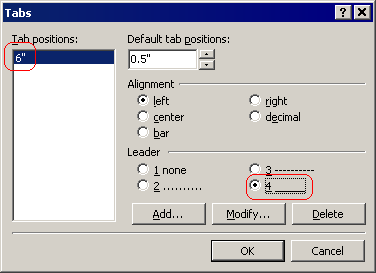
Horizontal lines can be inserted as tab characters with a custom tab position and a non-blank leader character. To turn the current (blank) paragraph into a horizontal line, you need to insert a tab character to this paragraph. Then choose the “Format | Tabs…” menu command. Click the “Add…” button to add a new tab stop position (6" should be OK for ordinary documents). Then choose the desired “Leader” character:
You could also insert graphic lines through the
Clip Library of Atlantis.
Please see the attached sample document.
Sorry, but you could not add a toolbar button for switching to a particular color scheme. I personally doubt that switching to a color scheme might require a one-mouse-click command (a toolbar button).
The default sound scheme of Atlantis is not distributed in the WAV format. But you could easily associate an Atlantis event with any WAV file from your hard disk (please use the “Browse…” button below the “Custom sound” box in the “Tools | Sounds…” dialog of Atlantis).
Sorry, but you could not adjust the depth used by the “Add/remove first line indent” command. But you could create a
style with the desired first line indent. By applying this style to any paragraph, you would get the desired indent. Alternatively you could create a new
Format Palette format, and specify a single attribute – the desired first line indent. Then you could use the
Format Brush or
Format Palette of Atlantis to apply this format to any paragraph.
The “Magnifying glass” tool is not supposed to be automatically toggled off when you remove its button from the toolbars. It is not a bug. Any “mouse mode” in Atlantis can be easily canceled by pressing the
Esc key.
In Atlantis, you can have up to 4
toolbars with two sets of commands. You have plenty of space to place all the commands you need.
