Hi,
I had to reinstall everything onto my computer when it recently had problems.
I had some Atlantis documents saved that had Korean text (Hangul) in them.
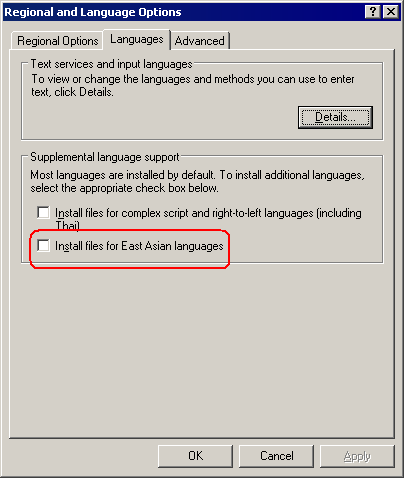
I have already installed the Asian fonts (using Windows XP's files) and they seem to be working with other programs, as I am now seeing Hangul text in places such as song lists I have on YouTube.
But when I re-installed Atlantis, and loaded my some if my saved Atlantis documents which had Korean text on them...all I am seeing are white boxes, instead of Hangul text.
Is there a setting I am missing? I looked at Atlantis's menu and see where I can have English as my main language...but I don't see anything that will allow the Korean text to show back up in my files I have saved.
Any help would be appreciated.
Thanks
Stormy
Documents with text in Korean no longer showing?
-
StormyPeak
- Posts: 15
- Joined: Mon Oct 22, 2007 10:11 am

-
StormyPeak
- Posts: 15
- Joined: Mon Oct 22, 2007 10:11 am
-
StormyPeak
- Posts: 15
- Joined: Mon Oct 22, 2007 10:11 am
It looks like I'll never be able to recover all my documents that had Korean script in them.
Any advice on how to prevent this from happening again, if my computer should ever crash and I need to reload my operating system? Maybe it was in the way the documents were saved?
I had, I believe, all the documents saved as 'rich text'. Should I be saving them as something else to preserve special fonts, like the Korean text (which were all, also under 'Arial unicode MS'
I'm just sick about this. I will have hours and hours of work in fixing all those documents...which had Korean Hangul and English translations on them.
Stormy
Any advice on how to prevent this from happening again, if my computer should ever crash and I need to reload my operating system? Maybe it was in the way the documents were saved?
I had, I believe, all the documents saved as 'rich text'. Should I be saving them as something else to preserve special fonts, like the Korean text (which were all, also under 'Arial unicode MS'
I'm just sick about this. I will have hours and hours of work in fixing all those documents...which had Korean Hangul and English translations on them.
Stormy
If your documents previously displayed correctly by Atlantis, now do not display correctly, something must have changed in your system.
How many Korean fonts do you have in your Windows? Do you have Batang, Dotum, Gulim, Gungsuh? If so, please try formatting Korean text in your document with a different Korean font.
Could you please email any of your Korean documents to support@AtlantisWordProcessor.com?
How does the attached document file displays in Atlantis and WordPad?
Is your Atlantis Word Processor up-to-date (please choose the "Help | Check for Updates..." menu command of your Atlantis)?
How many Korean fonts do you have in your Windows? Do you have Batang, Dotum, Gulim, Gungsuh? If so, please try formatting Korean text in your document with a different Korean font.
Could you please email any of your Korean documents to support@AtlantisWordProcessor.com?
How does the attached document file displays in Atlantis and WordPad?
Is your Atlantis Word Processor up-to-date (please choose the "Help | Check for Updates..." menu command of your Atlantis)?
- Attachments
-
- korean.rtf
- (1.41 KiB) Downloaded 747 times
-
StormyPeak
- Posts: 15
- Joined: Mon Oct 22, 2007 10:11 am
I'll email you a document.
I'm not sure about the fonts.
I just re-installed Atlantis, so I *think* it should have installed it's most current version. I haven't been asked for an update, so again, I think I have the most current version.
I'll download that link you put up and check it out.
EDIT: The download - the Hangul script showed up fine on that page.
Stormy
I'm not sure about the fonts.
I just re-installed Atlantis, so I *think* it should have installed it's most current version. I haven't been asked for an update, so again, I think I have the most current version.
I'll download that link you put up and check it out.
EDIT: The download - the Hangul script showed up fine on that page.
Stormy
Thanks for the document file.
Your Korean text is formatted with the "Arial Unicode MS" font. Please open the "Fonts" applet of the Windows Control Panel. Do you have "Arial Unicode MS" there? Does your Atlantis offer the "Arial Unicode MS" font when you pull down the "Font" list (press Ctrl+Shift+F in Atlantis)?
Your Korean text is formatted with the "Arial Unicode MS" font. Please open the "Fonts" applet of the Windows Control Panel. Do you have "Arial Unicode MS" there? Does your Atlantis offer the "Arial Unicode MS" font when you pull down the "Font" list (press Ctrl+Shift+F in Atlantis)?
-
StormyPeak
- Posts: 15
- Joined: Mon Oct 22, 2007 10:11 am
I went to Microsoft and downloaded their Korean font package, just to be sure I had those fonts.
I also tried re-formatting using some of the fonts you mentions and it seems to be working with those fonts.
I'm glad to have found a way to get the info back without having to hunt it all down on the internet again. But still, it will still be a chore to go in and have to change all those blocks to one of the other fonts to make them readable again.
I have pages of Korean learning texts, commonly used phrases and also song lyrics.
I hate when computers break down...there always seems to be a good headache that comes with getting it back to running the way you want it to...re-installing all programs and such.
You've been very helpful.
Thank You = in Korean: 고맙습니다 (Komasumnida)
Stormy : )
I also tried re-formatting using some of the fonts you mentions and it seems to be working with those fonts.
I'm glad to have found a way to get the info back without having to hunt it all down on the internet again. But still, it will still be a chore to go in and have to change all those blocks to one of the other fonts to make them readable again.
I have pages of Korean learning texts, commonly used phrases and also song lyrics.
I hate when computers break down...there always seems to be a good headache that comes with getting it back to running the way you want it to...re-installing all programs and such.
You've been very helpful.
Thank You = in Korean: 고맙습니다 (Komasumnida)
Stormy : )
-
StormyPeak
- Posts: 15
- Joined: Mon Oct 22, 2007 10:11 am
I just looked. I think that is the problem.admin wrote:Thanks for the document file.
Your Korean text is formatted with the "Arial Unicode MS" font. Please open the "Fonts" applet of the Windows Control Panel. Do you have "Arial Unicode MS" there? Does your Atlantis offer the "Arial Unicode MS" font when you pull down the "Font" list (press Ctrl+Shift+F in Atlantis)?
Neither show that font being listed.
I was shown that font name when I scrolled over the blocks, that how I knew it was that font.
I guess now, I'll have to go find that font on the internet someplace and see how to install it into my computer (and also into Atlantis if the program doesn't automatically detect it in Windows?)
I hope you just saved me a ton of work and this is the problem.
Stormy
It was showing the font name associated with the text at the cursor position in your document. But it does not mean that your Windows has all the fonts required to display your document correctly.I was showing that font name when I scrolled over the blocks, that how I knew it was that font.
You do not need to install anything into Atlantis. Just install the required font into your Windows. Atlantis will automatically "notice" a change to the system fonts. You will not even have to restart Atlantis, or reopen your documents.I guess now, I'll have to go find that font on the internet someplace and see how to install it into my computer (and also into Atlantis if the program doesn't automatically detect it in Windows?)
-
StormyPeak
- Posts: 15
- Joined: Mon Oct 22, 2007 10:11 am
Thanks for the help.admin wrote: You do not need to install anything into Atlantis. Just install the required font into your Windows. Atlantis will automatically "notice" a change to the system fonts. You will not even have to restart Atlantis, or reopen your documents.
I just found out that Microsoft wants people to purchase this font.
It's $165.00!!!
 Microsoft can stuff it sideways where the sun don't shine.
I'll just go in and use one of the other fonts and convert my files to one of those other fonts.
I'm not sure why I had it on my computer before it crashed, and don't have it now. It must have been pre-installed with something that my computer came with when it was brand new.
Stormy
Hi Stormy,StormyPeak wrote:But still, it will still be a chore to go in and have to change all those blocks to one of the other fonts to make them readable again.
“Arial Unicode MS” is installed with Microsoft applications like MS Office, Access, Excel, Front Page, OneNote, Outlook, Powerpoint, Publisher, Word 2007.
If you have any of these products, try reinstalling. “Arial Unicode MS” should be available again. If you haven’t got any of these products, you probably had a pirated copy on your previous system.
But you can use other Korean fonts all the same. You’ll find free Unicode Korean fonts at http://cooltext.com/Fonts-Unicode-Korean.
When you have installed any of these free fonts, you can correct your documents automatically. They will display as intended if you proceed as follows:
1. Open any document wrongly formatted with “Arial Unicode MS”.
2. Place the insertion cursor at the start of the document.
3. Press Ctrl+H.
4. Clear the Find box if necessary.
5. Press the first button under the Find box to specify a font name. Choose “Arial Unicode MS”.
6. OK out of the Font Format dialog.
7. Clear the Replace With box if necessary.
8. Press the first button under the Replace With box to specify a font to be substituted for “Arial Unicode MS”. Choose “Baekmuk Gulim” for example (note that the “Batang” font at http://cooltext.com/Fonts-Unicode-Korean seems to be invalid).
9. OK out of the Font Format dialog.
10. Press the “Replace All” button in the “Find / Replace” dialog.
Atlantis will automatically reformat with “Baekmuk Gulim” all the characters previously formatted with “Arial Unicode MS”.
You can resave your document after that.
HTH.
Cheers,
Robert
Hi Stormy,
The above description was missing a few steps. Here are the complete steps:
1. Open any document wrongly formatted with “Arial Unicode MS”.
2. Place the insertion cursor at the start of the document.
3. Press Ctrl+H.
4. Clear the Find box if necessary.
5. Press the “More” button if you cannot see the “Format” check boxes to the left of the “Find / Replace” dialog.
6. Check the “Format” box under the Find box.
7. Press the first button under the Find box to specify a font name. Choose “Arial Unicode MS”.
8. OK out of the Font Format dialog.
9. Clear the Replace With box if necessary.
10. Check the “Format” box under the Replace With box.
11. Press the first button under the Replace With box to specify a font to be substituted for “Arial Unicode MS”. Choose “Baekmuk Gulim” for example (note that the “Batang” font at http://cooltext.com/Fonts-Unicode-Korean seems to be invalid).
12. OK out of the Font Format dialog.
13. Press the “Replace All” button in the “Find / Replace” dialog.
Atlantis will automatically reformat with “Baekmuk Gulim” all the characters previously formatted with “Arial Unicode MS”.
HTH.
Cheers,
Robert
The above description was missing a few steps. Here are the complete steps:
1. Open any document wrongly formatted with “Arial Unicode MS”.
2. Place the insertion cursor at the start of the document.
3. Press Ctrl+H.
4. Clear the Find box if necessary.
5. Press the “More” button if you cannot see the “Format” check boxes to the left of the “Find / Replace” dialog.
6. Check the “Format” box under the Find box.
7. Press the first button under the Find box to specify a font name. Choose “Arial Unicode MS”.
8. OK out of the Font Format dialog.
9. Clear the Replace With box if necessary.
10. Check the “Format” box under the Replace With box.
11. Press the first button under the Replace With box to specify a font to be substituted for “Arial Unicode MS”. Choose “Baekmuk Gulim” for example (note that the “Batang” font at http://cooltext.com/Fonts-Unicode-Korean seems to be invalid).
12. OK out of the Font Format dialog.
13. Press the “Replace All” button in the “Find / Replace” dialog.
Atlantis will automatically reformat with “Baekmuk Gulim” all the characters previously formatted with “Arial Unicode MS”.
HTH.
Cheers,
Robert
-
StormyPeak
- Posts: 15
- Joined: Mon Oct 22, 2007 10:11 am
Thanks for the information on full page formatting.
I tried to do it, but, I believe because that because the Arial Unicode MS font is not in my system, then Atlantis can't automatically find and replace it with another font....although it seems to do fine when I manually highlight and replace the Arial Unicode MS font.
Here are a couple of screen shots that I made to show what I ran up against in trying to get Atlantis to replace all the Arial type font with a Gulimche font.
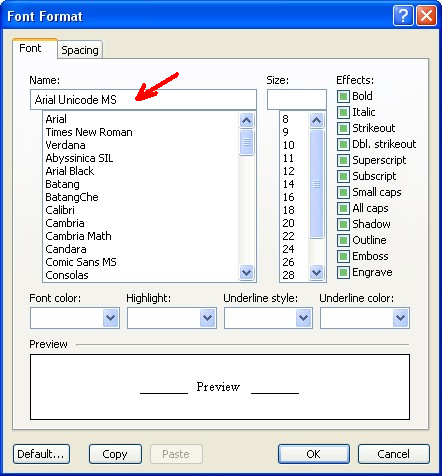
This shows the drop down I see when chosing fonts in that control-h format screen -- notice that Arial Unicode MS is not on the list:

So...I tried to manually type in the font name...but that didn't work:

The results of me trying to manually type it in and then hitting the "replace all" button had the program scan the document but not replace anything.

But...like I said, I can for some reason do it manually. Here in some song lyrics I used my mouse along with the control button to highlight several lines of 'blocks' and replace them with the Gulimche font.

----------------
I would like to say that I'm very grateful for your help. I've a lot of Korean lessons on the program that I didn't want to lose...along with song lyrics...songs, btw, are a great tools in learning another language! They are fun, but not exactly frivolous, so I didn't want to lose them...especially since with some of them I translated them myself instead of just picking up already translated versions..
I bought the Atlantis program some years ago, and I use it all the time. It's nice to know that when ever I've had questions I've received such quick and detailed help from here.
Atlantis is a great program and the support team is extraordinary!
Stormy
I tried to do it, but, I believe because that because the Arial Unicode MS font is not in my system, then Atlantis can't automatically find and replace it with another font....although it seems to do fine when I manually highlight and replace the Arial Unicode MS font.
Here are a couple of screen shots that I made to show what I ran up against in trying to get Atlantis to replace all the Arial type font with a Gulimche font.
This shows the drop down I see when chosing fonts in that control-h format screen -- notice that Arial Unicode MS is not on the list:
So...I tried to manually type in the font name...but that didn't work:
The results of me trying to manually type it in and then hitting the "replace all" button had the program scan the document but not replace anything.
But...like I said, I can for some reason do it manually. Here in some song lyrics I used my mouse along with the control button to highlight several lines of 'blocks' and replace them with the Gulimche font.
----------------
I would like to say that I'm very grateful for your help. I've a lot of Korean lessons on the program that I didn't want to lose...along with song lyrics...songs, btw, are a great tools in learning another language! They are fun, but not exactly frivolous, so I didn't want to lose them...especially since with some of them I translated them myself instead of just picking up already translated versions..
I bought the Atlantis program some years ago, and I use it all the time. It's nice to know that when ever I've had questions I've received such quick and detailed help from here.
Atlantis is a great program and the support team is extraordinary!
Stormy
Hi Stormy,
I am afraid you misunderstood our explanations.
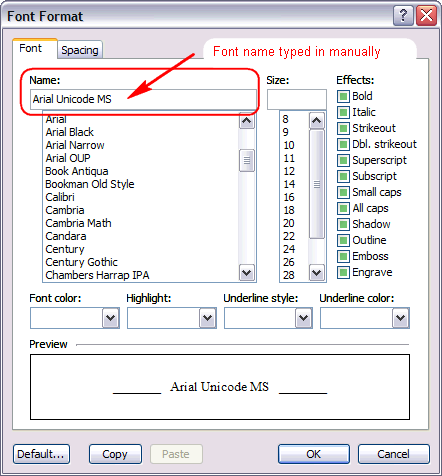
Since “Arial Unicode MS” is not listed in your “Ctrl+H” “Font Format” dialog, you have to type its name in manually. But you need to type it into the “Name” box of the “Font Format” dialog itself, like this:
On the other hand, and as explained in the above step by step instructions, you should clear the Find and Replace With boxes. This means leaving them empty.
The names of the fonts that are to be substituted must be entered in the “Name” boxes of the “Font Format” dialogs themselves. Not in the Find and Replace With boxes.
HTH.
Cheers,
Robert
I am afraid you misunderstood our explanations.
Since “Arial Unicode MS” is not listed in your “Ctrl+H” “Font Format” dialog, you have to type its name in manually. But you need to type it into the “Name” box of the “Font Format” dialog itself, like this:
On the other hand, and as explained in the above step by step instructions, you should clear the Find and Replace With boxes. This means leaving them empty.
The names of the fonts that are to be substituted must be entered in the “Name” boxes of the “Font Format” dialogs themselves. Not in the Find and Replace With boxes.
HTH.
Cheers,
Robert
-
StormyPeak
- Posts: 15
- Joined: Mon Oct 22, 2007 10:11 am
Aaahhh!!!!
What's that saying about a picture paints a thousand words.
I totally misunderstood where to type in the font name.
I did it where you showed me in the last post and it worked. : D
Sorry for all the work I've caused ya. I feel bad I didn't understand your instructions in the first place. But, I'm going to blame it on me having a horrid flue for the past 2 weeks and not getting much sleep...my mind is like mush at the moment.
You have made things so much easier for me with this.
Thanks so much!
Stormy
What's that saying about a picture paints a thousand words.
I totally misunderstood where to type in the font name.
I did it where you showed me in the last post and it worked. : D
Sorry for all the work I've caused ya. I feel bad I didn't understand your instructions in the first place.
But, I'm going to blame it on me having a horrid flue for the past 2 weeks and not getting much sleep...my mind is like mush at the moment. You have made things so much easier for me with this.
Thanks so much!
Stormy