Just installed the latest Beta and had a quick go with the new navigation tool. Seems a nice idea but an immediate suggestion is to allow the dialogue box to be moved (and remember that position for next time). For me it appears partially obscuring the "Previous" and "Next" buttons and just kind of feels uncomfortably close to the bottom of the screen (I always run Atlantis in full screen).
By the way, was the 'Format' option always in the find dialogue? If so, I've missed it all these years! I'd swear I'd never seen it before.
While I’m here…
Any chance of adding an icon for the ‘Change Text Case (Headings)’ function? I’ve added it to my toolbar but appearing as text means it uses up a lot of space.
Beta 1.6.5.4 (a0) - I want to move the navigation tool box
Hi Andy,
As things stand, you have to make do with the drop-down attached to the “Invert capitals” toolbar button (“Format” category). You could also assign a hot key to the “Change Text Case (Headings)” command (I have assigned “Ctrl+0” to it on my system).
By the way, the “Format” option has been in the Find dialog for quite some time now.
HTH.
Cheers,
Robert
As things stand, you have to make do with the drop-down attached to the “Invert capitals” toolbar button (“Format” category). You could also assign a hot key to the “Change Text Case (Headings)” command (I have assigned “Ctrl+0” to it on my system).
By the way, the “Format” option has been in the Find dialog for quite some time now.
HTH.
Cheers,
Robert

Sorry, Andy, but the Navigation tool (the 3 buttons at the bottom of the vertical scrollbar in the document window of Atlantis) is not a toolbar, and it could not be "floating". I am not sure that making such small objects "floating" is a good idea.
The "Format" option becomes visible in the "Find / Replace" window of Atlantis if you click the "More" button in this dialog.
The "Format" option becomes visible in the "Find / Replace" window of Atlantis if you click the "More" button in this dialog.
I personally have no idea of how that icon would be supposed to look.Any chance of adding an icon for the ‘Change Text Case (Headings)’ function
I’m not talking about those 3 buttons being ‘floatable’ (that wouldn’t make sense at all), I mean the little ‘Select object’ box that appears when you press the little circle button in the middle and can choose what to navigate between (heading, hyperlinks, footnotes etc). All I want is to be able to move that box away from the bottom of the screen and stop it partially obscuring the 3 buttons (and for it to remember that new location next time it appears).admin wrote:Sorry, Andy, but the Navigation tool (the 3 buttons at the bottom of the vertical scrollbar in the document window of Atlantis) is not a toolbar, and it could not be "floating". I am not sure that making such small objects "floating" is a good idea.
I notice that the box doesn’t partially cover the buttons in the second screenshot down on the page you made explaining the new feature. Perhaps it’s to do with my running Windows 7 and using the Aero theme? Whatever the reason, I think it would be good to be able to move it.
I’d be happy with just a generic icon (an alphabetic letter, numeral or shape (star, box, circle, whatever)). the tooltip would tell me what it did if I ever forgot. Even being able to decide for myself the text that appears on the current button would be useful as I could use something much shorter.admin wrote: I personally have no idea of how that icon would be supposed to look.
The "Select object" popup window is not supposed to be moved anywhere, or stick on the screen (stay visible) while you perform any other action. When this popup window is displaying, you are supposed to choose a new object type, or close the window. It works similarly to the drop-down boxes of the "Font", "Font size", or "Highlight" toolbar commands of Atlantis.
Sorry, but we cannot add such non-descriptive icons to the standard Atlantis set of toolbar button images.I’d be happy with just a generic icon (an alphabetic letter, numeral or shape (star, box, circle, whatever)).
At the risk of sounding hugely sarcastic (which i’m really not trying to do)... I know the box isn’t meant to move as you’ve clearly coded it in such a way as to not allow it to move (with the best of intentions I've no doubt). That is why I’m asking for the change, so that I can move it. Simply stating that you didn’t intend it to move doesn’t really address my request. As for the other examples of non moving boxes you give, I don’t feel the need to move them so they don’t concern me.admin wrote:The "Select object" popup window is not supposed to be moved anywhere
Put it this way, what would be the problem with the user being able to move the box? I am a paid up user and want to move the box away from where it appears as it feels ‘uncomfortable’ to me (I can't upload a screenshot at the moment but would be happy to email it if it helps) – why not let me? My assumption is (and correct me if I’m wrong) that it’s simply something like a checkbox you need to toggle to allow that box to be moveable so hardly a big time consuming programming challenge.
Ok, how about for functions that haven’t got their own icon, allowing the user the option to type in their own label for the text button?Sorry, but we cannot add such non-descriptive icons to the standard Atlantis set of toolbar button images.
The source code of Atlantis includes an extra fragment (a routine) preventing this popup window from being moved. In other words, it required some efforts to make this window non-movable.
This popup window is "attached" (anchored) to the "o"-button in the vertical scrollbar of the document window. The window appears only when you click the "o"-button. Moving the window away from the "o"-button makes as much sense as moving the light switch of "Room A" to "Room B".
This popup window in Atlantis is non-movable because no other behavior makes sense.
This popup window is "attached" (anchored) to the "o"-button in the vertical scrollbar of the document window. The window appears only when you click the "o"-button. Moving the window away from the "o"-button makes as much sense as moving the light switch of "Room A" to "Room B".
This popup window in Atlantis is non-movable because no other behavior makes sense.
Let's consider this a feature request. As things stand (under the current format of the Atlantis toolbar settings), neither custom button captions nor icons are possible.Ok, how about for functions that haven’t got their own icon, allowing the user the option to type in their own label for the text button?
I think it's rather a stretch to equate being able to move the box away a little to moving it into a different room.admin wrote:Moving the window away from the "o"-button makes as much sense as moving the light switch of "Room A" to "Room B".
Well, I have to say I disagree but clearly I’m not persuading you so I’m holding up my hands and giving up on this one though I would suggest you see how it looks in Windows 7 if you haven't already.admin wrote:This popup window in Atlantis is non-movable because no other behavior makes sense.
Yes, please consider the user definable button text as a feature request. Maybe also being able to assign my own icons too?admin wrote:Let's consider this a feature request. As things stand (under the current format of the Atlantis toolbar settings), neither custom button captions nor icons are possible.
Under the Aero theme of Windows 7 the "Select object" window only partially overlaps the navigation buttons (Previous/Select/Next):
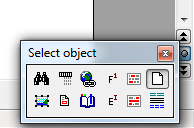
It is because the window has an extra padding added by the Aero theme.
It is a cosmetic issue because all the components of the Navigation tool are still functional. But the next build of the current Atlantis beta will take that padding into account:
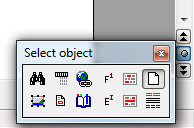
The update will be available tomorrow.
It is because the window has an extra padding added by the Aero theme.
It is a cosmetic issue because all the components of the Navigation tool are still functional. But the next build of the current Atlantis beta will take that padding into account:
The update will be available tomorrow.
Thanks for that.
I’m curious about your screenshots. They are showing the box high enough from the bottom of the screen that the shadow is visible underneath it. When I do it at full screen (1280x800), its bottom edge is aligned with the bottom of the screen (actually it seems a pixel or two off the bottom of the screen). When I experiment with a non maximised window, the navigation box appears appreciably further down in relation to the 3 navigation buttons.
Not a complaint – just a curious observation.
I’m curious about your screenshots. They are showing the box high enough from the bottom of the screen that the shadow is visible underneath it. When I do it at full screen (1280x800), its bottom edge is aligned with the bottom of the screen (actually it seems a pixel or two off the bottom of the screen). When I experiment with a non maximised window, the navigation box appears appreciably further down in relation to the 3 navigation buttons.
Not a complaint – just a curious observation.
As I understand, scrollbars are enabled under the Full Screen mode in your Atlantis, and the "Auto-hide the taskbar" option is on in your Windows. OK, the latest beta build of Atlantis takes the vertical window padding into account in such situations. You can update your Atlantis beta through the "Help | Check for Updates..." menu command of Atlantis. Thanks.
I installed the new Beta (a3) and the box does now appear higher (the bottom edge is no longer off the bottom of the screen and I can see the shadow under it) and slightly more to the left (the box no longer partially covers the 3 navigation controls) which results on it feeling more ‘comfortable’ so thanks for that.
Given that, I’m not sure this matters but...
I get the impression in your last post that you thought I was talking about the F9 Full Screen view. I actually meant the normal maximised window view – sorry if I was using the wrong terms. Anyway, it’s fixed with that last Beta.
I’m curious what the "Auto-hide the taskbar” option is that you mention. I don’t think I’ve ever seen that and can’t find it in the help.
Given that, I’m not sure this matters but...
I get the impression in your last post that you thought I was talking about the F9 Full Screen view. I actually meant the normal maximised window view – sorry if I was using the wrong terms. Anyway, it’s fixed with that last Beta.
I’m curious what the "Auto-hide the taskbar” option is that you mention. I don’t think I’ve ever seen that and can’t find it in the help.
It is a standard option in the "Taskbar and Start Menu Properties" dialog of Windows:I’m curious what the "Auto-hide the taskbar" option is that you mention. I don’t think I’ve ever seen that and can’t find it in the help.
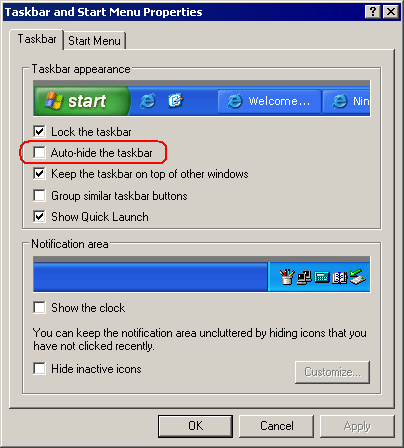
To display the dialog, right-click the Taskbar, and choose the "Properties..." menu command.
Here is a context Help for this option:
Hides the taskbar. To redisplay the taskbar, point to the area of your screen where the taskbar is located. If you want to be sure that your taskbar will be visible whenever you point to it, select the Keep the taskbar on top of other windows check box and also select the Auto-hide the taskbar check box.
About iconless commands in Atlantis.
As I said above, we could not add "generic" icons to the standard Atlantis set of toolbar button images. But I agree that longish iconless buttons on toolbars do not look good.
Here is what has been changed in the latest build of Atlantis beta:
Iconless commands will still remain iconless in Atlantis menus, in the "Tools | Menus...", "Tools | Toolbars...", and "Tools | Hot Keys..." dialogs. But if you put an "iconless command" on the toolbars, Atlantis will display it as a small button with a generic "ball" icon. The color of this icon can be yellow, red, green, blue, purple, or cyan. The actual color depends on the location of a given "iconless command" on the toolbars, and the total number of "iconless commands" on the toolbars:

As I said above, we could not add "generic" icons to the standard Atlantis set of toolbar button images. But I agree that longish iconless buttons on toolbars do not look good.
Here is what has been changed in the latest build of Atlantis beta:
Iconless commands will still remain iconless in Atlantis menus, in the "Tools | Menus...", "Tools | Toolbars...", and "Tools | Hot Keys..." dialogs. But if you put an "iconless command" on the toolbars, Atlantis will display it as a small button with a generic "ball" icon. The color of this icon can be yellow, red, green, blue, purple, or cyan. The actual color depends on the location of a given "iconless command" on the toolbars, and the total number of "iconless commands" on the toolbars:
D’oh! [slapping myself on the forehead] Yep, sorry, that was me being stupid – I thought you meant an option within Atlantis, it didn’t occur to me you meant the Windows task bar. Oh, and yes, I have that set to auto hide to maximise screen space.admin wrote:It is a standard option in the "Taskbar and Start Menu Properties" dialog of Windows.
My concern was purely with the precious extra space the text buttons take up. I don’t use Atlantis for its looks (no offence meant).admin wrote:I agree that longish iconless buttons on toolbars do not look good
Excellent! Thanks for doing thatadmin wrote:if you put an "iconless command" on the toolbars, Atlantis will display it as a small button with a generic "ball" icon.
