Great feature!!
It finds and marks each occurrence of the search term. Let's say it finds 18 instances.
I move to the first and correct it.
When I try to move to the next occurrence, I find that all the markings of the remaining 17 selections have vanished -- the markings, NOT the words.
So, to complete may task, I have to run Find and Select All for each word located.
Please tell me I must be missing something? Please?
BTW, I'm hoping to check 13 words across a 89,000 word novel. The thought of doing that horrifies me.
Find and Select All
Find and Select All
Life's too short to take it seriously

The "Find and Select All" command is not of much help if you are not going to deal with all the found instances at once (by formatting them in some way, for example).
Atlantis Word Processor 1.6.5.4 should be available for betatesting in the next few days. It will have a new Navigation tool in the vertical scrollbar of the document window:
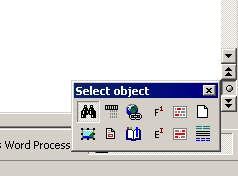
With this Navigation tool you could easily deal with individual objects of interest.
Atlantis Word Processor 1.6.5.4 should be available for betatesting in the next few days. It will have a new Navigation tool in the vertical scrollbar of the document window:
With this Navigation tool you could easily deal with individual objects of interest.
I look forward to trying 1.6.5.4.admin wrote:The "Find and Select All" command is not of much help if you are not going to deal with all the found instances at once (by formatting them in some way, for example).
Atlantis Word Processor 1.6.5.4 should be available for betatesting in the next few days. It will have a new Navigation tool in the vertical scrollbar of the document window:
With this Navigation tool you could easily deal with individual objects of interest.
The new Navigation tool sounds interesting. Let me try to better explain what I want this to do.
In fiction writing there can be structures called "filters", which might be regarded as "no-nos". Suppose I want to find variations of "to seem". I search for "seem". Atlantis Finds "seem", "seemed" "seems" and "seeming" and marks all of them. There can be large numbers of them.
While I understand your comment that the current tool,
it is not always appropriate when editing writing. Every occurrence of of the marked variations of "seem" (in my example) has to be considered individually and replaced with appropriate synonyms, which in many cases will be different.is not of much help if you are not going to deal with all the found instances at once (by formatting them in some way, for example
That's why I'll be testing the new feature with great interest, and with fingers crossed.
Life's too short to take it seriously
Hi,
As the name indicates, “Find and Select All” makes a multiple selection.
You need to use the “Find Next” button instead. Here are the steps:
1. Press “Ctrl+F”.
2. Enter the search item in the “Find” box (in your example, “seem”).
3. Press the “Find Next” button. Atlantis will select the first instance. Deal with it as suitable. If necessary, press “Shift+F7” to look up the word in WordWeb.
4. Press “Esc” to cancel the “Find/Replace” dialog.
5. Press “F3” repeatedly to navigate from one instance of the search item to the next. Deal with each instance as appropriate.
Alternatively, you could use the “Overused Words” feature. Here are the steps:
1. Click “Tools | Overused Words…”
2. In the “Overused Words” dialog, click to display the “Frequencies” tab.
3. Choose any suitable word in the “Words & phrases” list (in your example, “seem/seems/seemed/seeming”).
4. Press “Next Occurrence”. Atlantis will select the first instance. Deal with it as suitable.
5. Press “Next Occurrence” until all instances have been dealt with.
Finally, note that the new Navigation tool will basically do the same thing as pressing “F3” or “Next Occurrence” repeatedly. Instead of “F3”, you’ll have to press “Ctrl+Page Down”.
HTH.
Cheers,
Robert
As the name indicates, “Find and Select All” makes a multiple selection.
You need to use the “Find Next” button instead. Here are the steps:
1. Press “Ctrl+F”.
2. Enter the search item in the “Find” box (in your example, “seem”).
3. Press the “Find Next” button. Atlantis will select the first instance. Deal with it as suitable. If necessary, press “Shift+F7” to look up the word in WordWeb.
4. Press “Esc” to cancel the “Find/Replace” dialog.
5. Press “F3” repeatedly to navigate from one instance of the search item to the next. Deal with each instance as appropriate.
Alternatively, you could use the “Overused Words” feature. Here are the steps:
1. Click “Tools | Overused Words…”
2. In the “Overused Words” dialog, click to display the “Frequencies” tab.
3. Choose any suitable word in the “Words & phrases” list (in your example, “seem/seems/seemed/seeming”).
4. Press “Next Occurrence”. Atlantis will select the first instance. Deal with it as suitable.
5. Press “Next Occurrence” until all instances have been dealt with.
Finally, note that the new Navigation tool will basically do the same thing as pressing “F3” or “Next Occurrence” repeatedly. Instead of “F3”, you’ll have to press “Ctrl+Page Down”.
HTH.
Cheers,
Robert