Newbie questions & bug

General comments and questions. Technical support.
Post Reply
andygrunt
Posts: 230
Joined: Mon Jul 23, 2007 12:35 pm

Newbie questions & bug

Post by andygrunt »

Having used Atlantis for a day or two now, I have a couple of questions I can't find the answer to in the 'Help' and a (debatable) bug.

Questions:
  • - How do I insert a horizontal line?
    - How can I add a button on a toolbar to change to a particular colour scheme?
    - How can I use the default sound for one effect (e.g. 'end of line') on another (such as 'Error message')? I can' find the default sound wav files anywhere.
    - How do I adjust the depth of the 'first line indent' when using the 'Add/remove first line indent' button?
If the answer to any of these questions is "you can't", can they be added as feature requests?

Bug:
  • - I customised a toolbar (why can't I create new ones by the way?) and included the 'magnifying glass' tool. I applied that change and pressed the 'magnifying glass' and click in my doc to make it zoom in and out a few times. I decided I didn't want that tool on my toolbar so customised it again and removed the 'magnifying glass'. When I applied that and went back to my doc, the 'magnifying glass' tool was still active and I couldn't turn it off. I had to add the tool to my toolbar again, turn it off then remove the 'magnifying glass' from the toolbar.
User avatar
admin
Site Admin
Posts: 2954
Joined: Wed Jun 05, 2002 10:48 pm
Contact:

Post by admin »

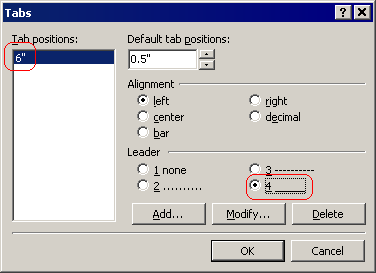
Horizontal lines can be inserted as tab characters with a custom tab position and a non-blank leader character. To turn the current (blank) paragraph into a horizontal line, you need to insert a tab character to this paragraph. Then choose the “Format | Tabs…” menu command. Click the “Add…” button to add a new tab stop position (6" should be OK for ordinary documents). Then choose the desired “Leader” character:
Image

You could also insert graphic lines through the Clip Library of Atlantis.

Please see the attached sample document.


Sorry, but you could not add a toolbar button for switching to a particular color scheme. I personally doubt that switching to a color scheme might require a one-mouse-click command (a toolbar button).


The default sound scheme of Atlantis is not distributed in the WAV format. But you could easily associate an Atlantis event with any WAV file from your hard disk (please use the “Browse…” button below the “Custom sound” box in the “Tools | Sounds…” dialog of Atlantis).


Sorry, but you could not adjust the depth used by the “Add/remove first line indent” command. But you could create a style with the desired first line indent. By applying this style to any paragraph, you would get the desired indent. Alternatively you could create a new Format Palette format, and specify a single attribute – the desired first line indent. Then you could use the Format Brush or Format Palette of Atlantis to apply this format to any paragraph.


The “Magnifying glass” tool is not supposed to be automatically toggled off when you remove its button from the toolbars. It is not a bug. Any “mouse mode” in Atlantis can be easily canceled by pressing the Esc key.


In Atlantis, you can have up to 4 toolbars with two sets of commands. You have plenty of space to place all the commands you need.
Attachments
Lines.rtf
(9.72 KiB) Downloaded 1099 times
andygrunt
Posts: 230
Joined: Mon Jul 23, 2007 12:35 pm

Post by andygrunt »

Thanks for your reply.

I can now make horizontal lines using your tab technique, thanks. I can't help feeling it would be good to make the process simpler though (e.g. with a simple button) - it seems a lot of work for a simple thing.

As for the colour scheme question, my reason for asking was that in MS Word, I use the 'Blue Background, white text' option quite a lot as I often work late at night or in a darkened room. The normal bright white paper makes this very tiring on the eyes so I switch on the blue background option. I was happy to see I could do the same thing in Atlantis but would prefer the option for it to be the press of a button (or hotkey) rather than having to go via the options menu. Again, I'd just like the process to be simpler and quicker as I'd be switching colour schemes regularly.

I realised I could use my own wav files for the sound scheme but would like to use the default sounds for options of my choice.

I'll try the indent/style suggestion when I get a chance, thanks.

Overall, I'm liking Atlantis very much. If my 'Clippy Bank enhancement' feature request could be implemented, I'd register immediately.
User avatar
admin
Site Admin
Posts: 2954
Joined: Wed Jun 05, 2002 10:48 pm
Contact:

Post by admin »

You could insert horizontal lines with a single mouse click if you added the corresponding clip to your Clip Library. Just select a “horizontal line” paragraph in your document, then right-click it, and choose the “Add to Clip Library…” menu command.

The following ZIP file includes most of the default Atlantis sounds as WAV files:
http://www.AtlantisWordProcessor.com/en ... e_wavs.zip
You could unpack the desired WAVs to your hard disk, and associate any sound event in Atlantis with them.
andygrunt
Posts: 230
Joined: Mon Jul 23, 2007 12:35 pm

Post by andygrunt »

I'll try both those, thanks.
Robert
Posts: 1906
Joined: Fri Aug 15, 2003 8:27 pm

Re: Instant Color Scheme

Post by Robert »

andygrunt wrote:As for the colour scheme question, my reason for asking was that in MS Word, I use the 'Blue Background, white text' option quite a lot as I often work late at night or in a darkened room. The normal bright white paper makes this very tiring on the eyes so I switch on the blue background option. I was happy to see I could do the same thing in Atlantis but would prefer the option for it to be the press of a button (or hotkey) rather than having to go via the options menu. Again, I'd just like the process to be simpler and quicker as I'd be switching colour schemes regularly.
Hi,
You could create 2 shortcuts to Atlantis on your Windows Desktop (or anywhere else you would find more suitable): the first shortcut would launch Atlantis with your usual Colour Scheme and settings; the second shortcut would launch Atlantis with a customized Color Scheme.

Here is how to proceed to create the second shortcut:

1. Open Atlantis.
2. Click "Tools | Options... > Colors.
3. Customize a Color Scheme to your liking. Note that you could try yellow as Auto Text, and dark green as Page Background. This color scheme reduces eyestrain too.
4. Press the "Apply" button.
5. Click "Save to File..."
6. Save your new settings to "Night Settings.ini" (for example).
7. Create a shortcut on your Windows Desktop with the following command-line:

"C:\Program Files\Atlantis\Atlantis.exe" /lsi /sfn "Night Settings.ini"

8. Give that shortcut a specific name like, for example, "Atlantis by Night".

When you double-click that Desktop shortcut in the future, Atlantis will launch with your "night-time" Color Scheme.
Hope this helps.
Robert
andygrunt
Posts: 230
Joined: Mon Jul 23, 2007 12:35 pm

Post by andygrunt »

Thanks Robert, that's a good idea.

At the risk of sounding picky though, It wouldn't really work for me as I'd be typing along then realise it was getting dark. I'd have to exit the program and run it again, remembering to run it from the correct shortcut.

Given how fast Atlantis loads, that might sound feasible but I'd much prefer to be able to click a button in the toolbar (or hit a Hotkey) to instantly switch over to the desired colour scheme, possibly mid sentence (or even mid word), without losing my train of thought.
Post Reply