I would like a continuing page-numbering in the 11 pages of an article.
Because of the lay-out I made some two-column pieces.
Now, for one or another reason, the numbering restarts with 3 on page 9.
And I want that page-number 9 and not 3.
The next page-number is again 3 ...... And again.
Why "3" and not "1" ?
Why restarts the numbering?
And: what is the solution?
I send the article as attachment.
Greetings.
And thanks in advance for the answer.
Bug or not-understanding in the page-numbering?
Bug or not-understanding in the page-numbering?
- Attachments
-
- T&K, layout probleem.rtf
- (84.72 KiB) Downloaded 1137 times
-
- T&K, layout probleem.rtf
- (84.72 KiB) Downloaded 1170 times
Vincent van Gool, Amsterdam
-
janniklindquist
- Posts: 71
- Joined: Wed Sep 05, 2001 9:44 pm
- Location: Copenhagen, Denmark

Thanks, Jannik, for your reply.
Yes, messy. But the only way (as far as I know and as far as Atlantis permits us) to make an acceptable lay-out.
So I don't still know a way to get the right page-numbering. Do you have an idea?
Greetings.
Vncnt
(I like your criticism; so, go on. Though it has nothing to do with this subject)
Yes, messy. But the only way (as far as I know and as far as Atlantis permits us) to make an acceptable lay-out.
So I don't still know a way to get the right page-numbering. Do you have an idea?
Greetings.
Vncnt
(I like your criticism; so, go on. Though it has nothing to do with this subject)
Vincent van Gool, Amsterdam

The problem is that most sections in your document include “restart numbering at 2” within their page numbering options (you can view page numbering settings of any section through the Sections panel of the Atlantis Control Board):
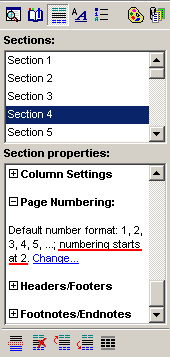
As I understand, all the sections in your document are supposed to continue numbering from previous section. In order to fix wrong numbering, you could review the page numbering settings of all the document sections through the Sections panel of the Atlantis Control Board. If the page numbering settings of the highlighted section do not say “continue numbering from previous section”, click the “Change” link within the Page Numbering settings:
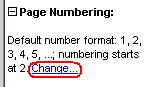
and check the “Continue from previous section” box in the dialog that would pop up:
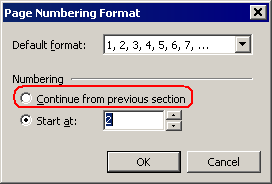
This would fix the problem with page numbering.
The fixed version of your document is attached to this post.
As I understand, all the sections in your document are supposed to continue numbering from previous section. In order to fix wrong numbering, you could review the page numbering settings of all the document sections through the Sections panel of the Atlantis Control Board. If the page numbering settings of the highlighted section do not say “continue numbering from previous section”, click the “Change” link within the Page Numbering settings:
and check the “Continue from previous section” box in the dialog that would pop up:
This would fix the problem with page numbering.
The fixed version of your document is attached to this post.
- Attachments
-
- T&K, layout probleem.rtf
- (84.39 KiB) Downloaded 1169 times
-
janniklindquist
- Posts: 71
- Joined: Wed Sep 05, 2001 9:44 pm
- Location: Copenhagen, Denmark
LOL! Sorry - I was honestly just trying to be helpful. It was just an idea - I had a look at your document and noticed that page 9 was not as neat as the rest of your document in the arrangement of the various breaks (column, section and page). I just thought that this would be worth a look.VJF wrote:Thanks, Jannik, for your reply.
Yes, messy. But the only way (as far as I know and as far as Atlantis permits us) to make an acceptable lay-out.
So I don't still know a way to get the right page-numbering. Do you have an idea?
Greetings.
Vncnt
(I like your criticism; so, go on. Though it has nothing to do with this subject)
Best wishes,
Jannik
Document structure
Greetings--
The numbering problem in this document arose because page numbering was (inexplicably) set to start at 2 in most sections from section 4 onwards.
When there is no specific reason to number pages in any other way than the natural numbering order, it is preferable to leave page numbering as it is set by default in Atlantis, that is to carry on sequentially through all sections.
This document could also be structured more efficiently:
1. For various reasons, the "Page break before" paragraph attribute is usually considered preferable to the "Page Break" formatting control (Ctrl+Enter). For example, the first page of this document ends with a Page Break. It would have been preferable to switch on the "Page break before" paragraph attribute for the "Samenvatting" first paragraph on the next page.
2. Whenever you want to space out paragraphs, it is also preferable to set appropriate "Spacing before/after" values for the target paragraphs. This is done very quickly if these paragraph values are set in the corresponding style. Changing the paragraph properties of a style is done only once and will take effect immediately throughout the whole document. If you use the Enter key to create spacing between paragraphs (you actually create empty paragraphs), and you want to increase or reduce inter-paragraph spacing later on, you have to use the Enter key (or the Del key) through the whole document to adjust spacing manually. On the other hand, if you change the paragraph properties of a style, inter-paragraph spacing will immediately and automatically be adjusted in the whole document.
3. If you want to add lines to a paragraph but do not want any spacing before the new lines, it is preferable to use a line break (Shift+Enter) rather than a paragraph break. For example, on page 2, you could have pressed Shift+Enter after "Verbetering Poortwachter)." to create a new logical "paragraph" with no spacing before.
4. Still on page 2, you placed a note very close to the footer text. If you print this document, this might look a bit crammed. The note and footer texts might even overlap. I personally would increase the bottom margin. You can do this very finely if you use the mouse cursor and the vertical ruler.
Note that there is a similar problem at the bottom of page 10. The last line is dangerously close to the footer text.
5. In your footers, you used a "Document Filename" field including the file path. Atlantis will accordingly display the local file path in these footers. On your system, it was "F:\ONDERZOEK\T&K, het onderzoeksrapport 05-12-2006.rtf". on my system, it is "J:\TEMPO\T&K, layout probleem.rtf". On another person's system, it might be anything, depending on where the file was stored. If you do not want your document to display or print with different footers on different systems, you should use a different type of field. You could use a plain "Document Filename" field. This would not include the local path. If you gave a title to the document in its Properties, you could use a "Document Title" field in the footers.
6. At the end of page 6, you have a "Page Break" (Ctrl+Enter), immediately followed on page 7 by a "Continuous Section Break". Things would look tidier if you simply used a "Next Page Section Break" at the end of page 6 instead of "Page Break"+"Continuous Section Break" across pages. This remark holds for the whole document which includes many instances of "Page Break"+"Continuous Section Break" across pages.
7.Still on page 7, you have 2 consecutive "Continuous Section Breaks". One section break is enough. There is no point in creating empty sections. You have plenty of such empty sections across the whole document. If you press Ctrl+F, enter "^b^b" (without the quotes) in the Find box, then press "Find Next", Atlantis will show you where these duplicate section breaks are located. Always remove the second section break from these duplicates.
Hope this helps.
Cheers
Robert
The numbering problem in this document arose because page numbering was (inexplicably) set to start at 2 in most sections from section 4 onwards.
When there is no specific reason to number pages in any other way than the natural numbering order, it is preferable to leave page numbering as it is set by default in Atlantis, that is to carry on sequentially through all sections.
This document could also be structured more efficiently:
1. For various reasons, the "Page break before" paragraph attribute is usually considered preferable to the "Page Break" formatting control (Ctrl+Enter). For example, the first page of this document ends with a Page Break. It would have been preferable to switch on the "Page break before" paragraph attribute for the "Samenvatting" first paragraph on the next page.
2. Whenever you want to space out paragraphs, it is also preferable to set appropriate "Spacing before/after" values for the target paragraphs. This is done very quickly if these paragraph values are set in the corresponding style. Changing the paragraph properties of a style is done only once and will take effect immediately throughout the whole document. If you use the Enter key to create spacing between paragraphs (you actually create empty paragraphs), and you want to increase or reduce inter-paragraph spacing later on, you have to use the Enter key (or the Del key) through the whole document to adjust spacing manually. On the other hand, if you change the paragraph properties of a style, inter-paragraph spacing will immediately and automatically be adjusted in the whole document.
3. If you want to add lines to a paragraph but do not want any spacing before the new lines, it is preferable to use a line break (Shift+Enter) rather than a paragraph break. For example, on page 2, you could have pressed Shift+Enter after "Verbetering Poortwachter)." to create a new logical "paragraph" with no spacing before.
4. Still on page 2, you placed a note very close to the footer text. If you print this document, this might look a bit crammed. The note and footer texts might even overlap. I personally would increase the bottom margin. You can do this very finely if you use the mouse cursor and the vertical ruler.
Note that there is a similar problem at the bottom of page 10. The last line is dangerously close to the footer text.
5. In your footers, you used a "Document Filename" field including the file path. Atlantis will accordingly display the local file path in these footers. On your system, it was "F:\ONDERZOEK\T&K, het onderzoeksrapport 05-12-2006.rtf". on my system, it is "J:\TEMPO\T&K, layout probleem.rtf". On another person's system, it might be anything, depending on where the file was stored. If you do not want your document to display or print with different footers on different systems, you should use a different type of field. You could use a plain "Document Filename" field. This would not include the local path. If you gave a title to the document in its Properties, you could use a "Document Title" field in the footers.
6. At the end of page 6, you have a "Page Break" (Ctrl+Enter), immediately followed on page 7 by a "Continuous Section Break". Things would look tidier if you simply used a "Next Page Section Break" at the end of page 6 instead of "Page Break"+"Continuous Section Break" across pages. This remark holds for the whole document which includes many instances of "Page Break"+"Continuous Section Break" across pages.
7.Still on page 7, you have 2 consecutive "Continuous Section Breaks". One section break is enough. There is no point in creating empty sections. You have plenty of such empty sections across the whole document. If you press Ctrl+F, enter "^b^b" (without the quotes) in the Find box, then press "Find Next", Atlantis will show you where these duplicate section breaks are located. Always remove the second section break from these duplicates.
Hope this helps.
Cheers
Robert
Thanks a lot for the convenient and unbelievable fast reaction, help and explanation, Jannik, Admin and Robert.
It helps me a lot to understand the meaning of the kind of breaks. And to make better and nicer lay-outs. and pagenumbering.
(Will it be more easy in the Atlantisversion-with-tables ?)
Greetings,
Vincnet
It helps me a lot to understand the meaning of the kind of breaks. And to make better and nicer lay-outs. and pagenumbering.
(Will it be more easy in the Atlantisversion-with-tables ?)
Greetings,
Vincnet
Vincent van Gool, Amsterdam
Re: document breaks
Greetings–
Tables make it easier to place different paragraphs in different columns. But the end result is different from what is called “snaking columns” which are currently supported in Atlantis. “Snaking columns” are what you find in newspapers. The text flows from one column to the next in a zigzag pattern. With tables, the text is placed in different cells which do not “communicate”. The information in one cell is separate from that of the previous and next cell. There is no text flow from one cell to the other. So tables and snaking columns have different uses.
This said, all documents potentially include various breaks (line, paragraph, column, section, page breaks). This will be the case whether the documents include tables, or not. Each of these break types has its own specific use. Unfortunately, there is a learning curve to document formatting as soon as you write something more elaborate than a letter to a pen friend. This is all the more necessary as document formatting in Atlantis has to follow the formatting rules specified by Microsoft in their document format specifications. Maybe things could have been designed in a simpler way. But we all have to follow suit.
Note that the Atlantis Control Board has been specifically designed to help you manage document formatting in the easiest possible way. Whenever you create complex documents, never forget to switch the Control Board on (F6). You will find useful information on the current document Headings, Bookmarks, Sections, Styles, Lists. But this is not all! Each of these panels has been designed so that managing the corresponding items should be as easy as possible. All the operations that you could wish to do regarding Headings, Bookmarks, Sections, Styles, Lists can be done very conveniently from the Atlantis Control Board.
A practical tip to close this posting:
If you use the paragraph “page break before” attribute whenever needed, you will probably find that bringing up the Paragraph dialog and switching that option on is too much of a hassle. There is a much more practical solution. Atlantis has a dedicated icon (“Page break before paragraph”). You can place it anywhere convenient on your toolbars.
In the same way, you could place icons for the paragraph formatting commands that you use most on your toolbars if they are not already there. Most paragraph formatting commands have corresponding icons in Atlantis.
Hope this helps.
Cheers
Robert
Tables make it easier to place different paragraphs in different columns. But the end result is different from what is called “snaking columns” which are currently supported in Atlantis. “Snaking columns” are what you find in newspapers. The text flows from one column to the next in a zigzag pattern. With tables, the text is placed in different cells which do not “communicate”. The information in one cell is separate from that of the previous and next cell. There is no text flow from one cell to the other. So tables and snaking columns have different uses.
This said, all documents potentially include various breaks (line, paragraph, column, section, page breaks). This will be the case whether the documents include tables, or not. Each of these break types has its own specific use. Unfortunately, there is a learning curve to document formatting as soon as you write something more elaborate than a letter to a pen friend. This is all the more necessary as document formatting in Atlantis has to follow the formatting rules specified by Microsoft in their document format specifications. Maybe things could have been designed in a simpler way. But we all have to follow suit.
Note that the Atlantis Control Board has been specifically designed to help you manage document formatting in the easiest possible way. Whenever you create complex documents, never forget to switch the Control Board on (F6). You will find useful information on the current document Headings, Bookmarks, Sections, Styles, Lists. But this is not all! Each of these panels has been designed so that managing the corresponding items should be as easy as possible. All the operations that you could wish to do regarding Headings, Bookmarks, Sections, Styles, Lists can be done very conveniently from the Atlantis Control Board.
A practical tip to close this posting:
If you use the paragraph “page break before” attribute whenever needed, you will probably find that bringing up the Paragraph dialog and switching that option on is too much of a hassle. There is a much more practical solution. Atlantis has a dedicated icon (“Page break before paragraph”). You can place it anywhere convenient on your toolbars.
In the same way, you could place icons for the paragraph formatting commands that you use most on your toolbars if they are not already there. Most paragraph formatting commands have corresponding icons in Atlantis.
Hope this helps.
Cheers
Robert
Many thanks again, Robert. Yes it helps a lot.If you use the paragraph “page break before” attribute whenever needed, you will probably find that bringing up the Paragraph dialog and switching that option on is too much of a hassle. There is a much more practical solution. Atlantis has a dedicated icon (“Page break before paragraph”). You can place it anywhere convenient on your toolbars.
In the same way, you could place icons for the paragraph formatting commands that you use most on your toolbars if they are not already there. Most paragraph formatting commands have corresponding icons in Atlantis.
Where can I find the icons? Or a way to attribute a key to it?
Greetings,
Vincent
Vincent van Gool, Amsterdam
Re: where can I find the Atlantis icons
Click "Tools | Toolbars..." to place new icons on your toolbars, "Tools | Hot Keys..." to assign hot keys to available commands. If you want help on how to use these two dialogs, press F1 when they are open.